
NFC Technology
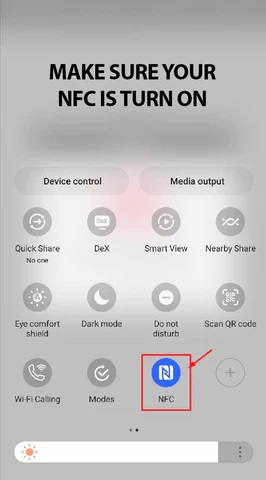
Check that your cell phone has NFC technology enabled.
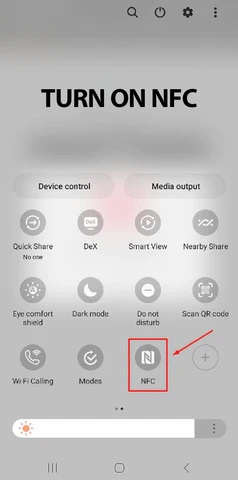
- On some Android devices, you need to make sure that NFC is enabled.
- On iPhone or iPad (iOS) you can find information in the 'Shortcuts user manual'
Devices with iOS system
Installation and configuration of the NFC Tools application on mobile devices with iOS system.
1. In order to activate the quick access link to your Google reviews on the card, you must download and install the NFC Tools application for iOS devices at the following link: click here.
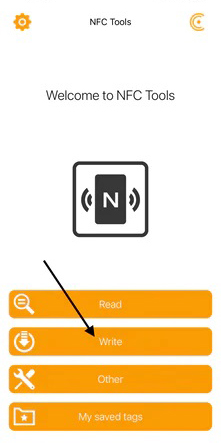
2. Once installed, open the NFC tools application and click Write:
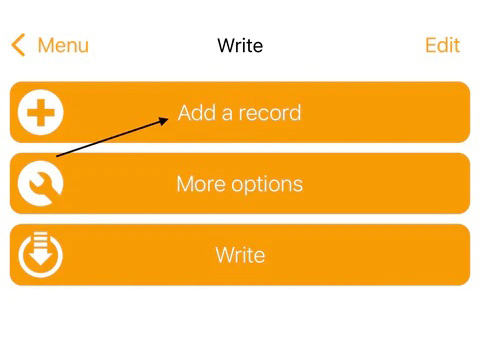
3. Select Add a record:
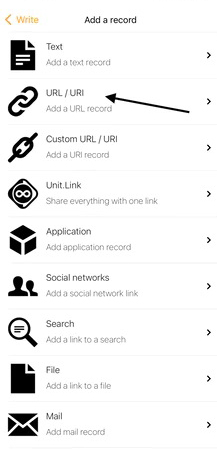
4. Select the URL / URI option:
5. Find your Google review link (url) (see this tutorial).
5.1) Log in to your Google My Business dashboard (by opening your browser and typing "Google My Business"): Log in to your Google My Business account and go to your dashboard. If you have not yet set up an account, it is easy to create one for free: click here.
5.2) Locate your company page: Find and select your company page in the dashboard.
5.3) Scroll down to find the new options for your Google business profile and click "Request Reviews".
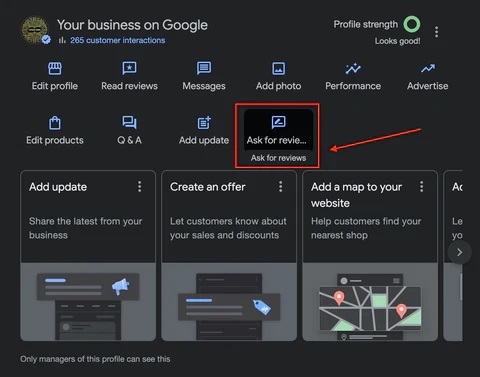
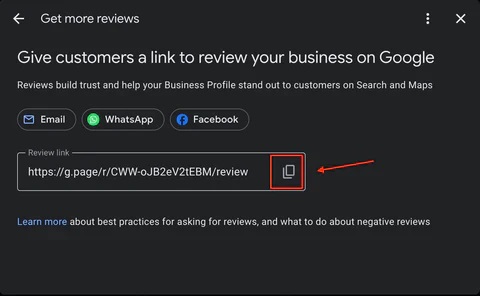
5.4) In the pop-up window, copy the URL provided (as shown below) and save your Google review link.
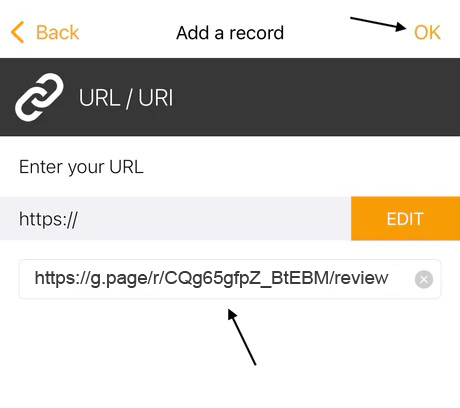
6. Once you have the Google reviews link (url) and make sure it starts with https, insert this link and click OK:
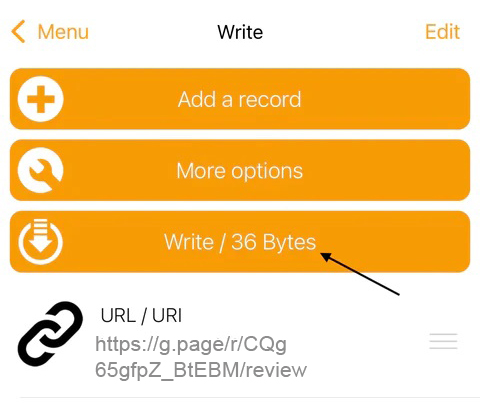
7. Click on "Write / 36 Bytes":
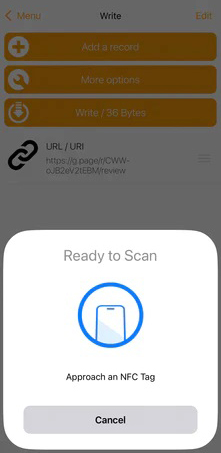
8. And place your Rate My Business card in front of the camera lens of your iPhone, so that the link (ulr) is inserted into the card:
That's it, you can start collecting Google reviews from your customers quickly and easily with the Rate My Business card.
If you still have doubts to configure your link or have difficulties during the process, please send us an email to support@puntuaminegocio.com or through our contact form.
Android devices
Installation and configuration of the NFC Tools application on Android devices
1. To activate the quick access link to your Google reviews on the card, you must download and install the NFC Tools application for Android devices at the following link:click here.
2. Open the NFC Tools application and click on Write:
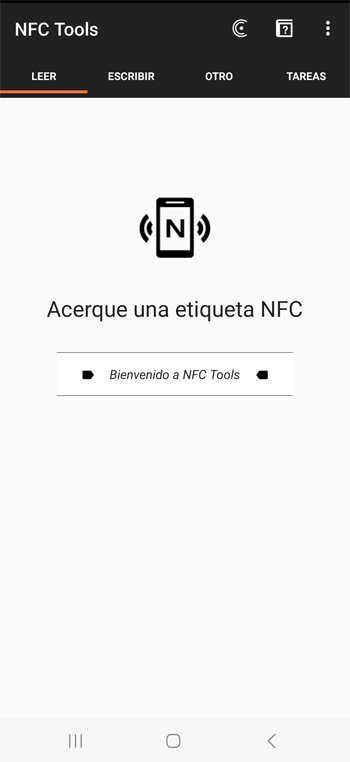
If you get an error screen, the NFC option is disabled on your Android. To activate it, swipe down from the top and click on NFC:
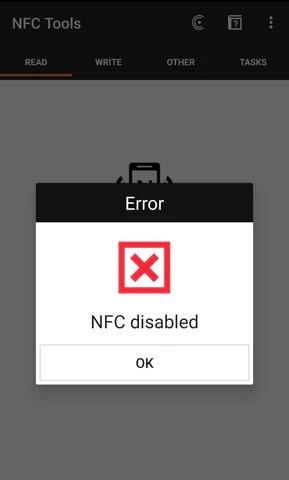
3. Go back to the NFC Tools application, click Write and select the Add a record option:
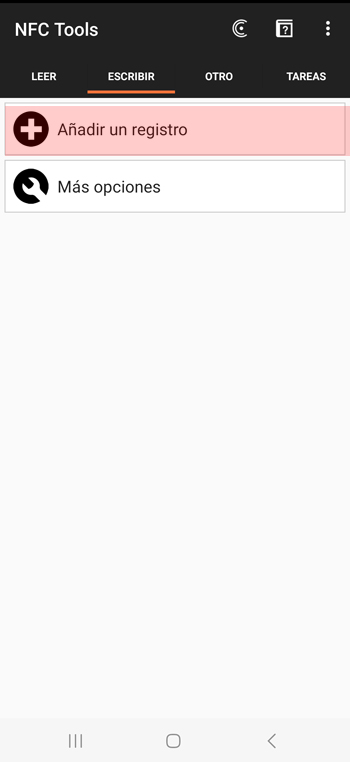
4. Select the Custom URL / URI option:
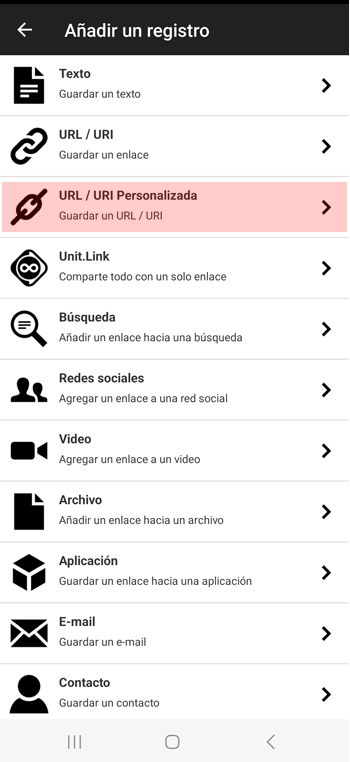
5. Find your Google review link (url) (see this tutorial).
5.1) Log in to your Google My Business dashboard (by opening your browser and typing "Google My Business"): Log in to your Google My Business account and go to your dashboard. If you have not yet set up an account, it is easy to create one for free: click here.
5.2) Locate your company page: Find and select your company page in the dashboard.
5.3) Scroll down to find the new options for your Google business profile and click "5.3) Scroll down to find the new options for your Google business profile and click "Request Reviews".
5.4) In the pop-up window, copy the URL provided (as shown below) and save your Google review link.
6. Once you have the Google reviews link (url) and make sure it starts with https, insert this link and click OK:
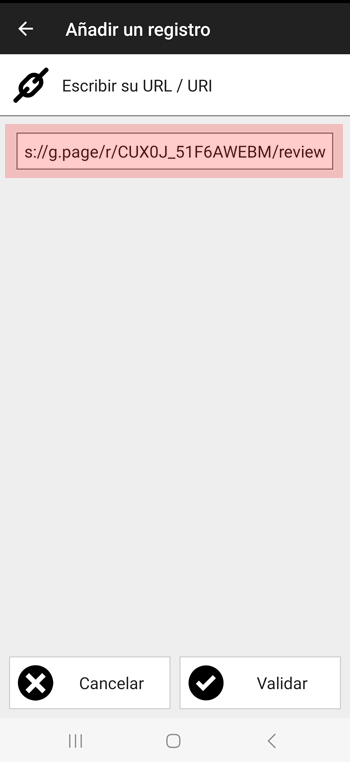
6. Click on Write / 36 Bytes:
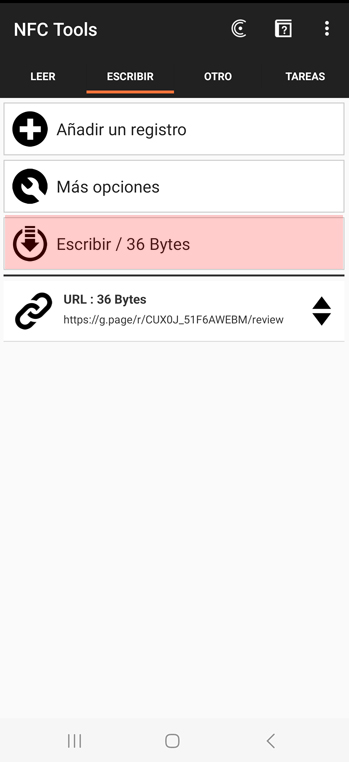
7. Place your Score My Business card on the back of your phone (under the camera), so that the link (ulr) is inserted into your card:
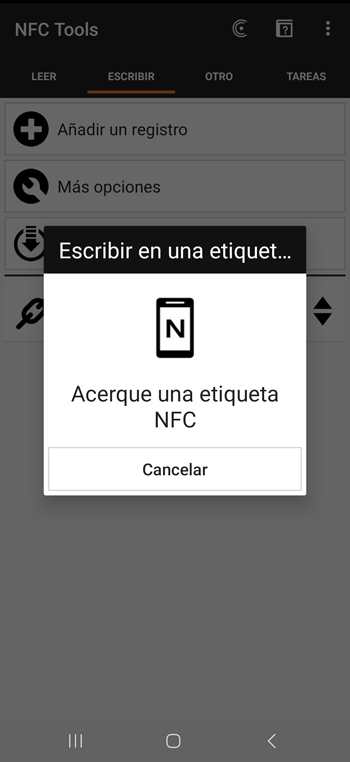
That's it, you can start collecting Google reviews from your customers quickly and easily with the Rate My Business card.
If you still have doubts to configure your link or have difficulties during the process, please send us an email to support@puntuaminegocio.com or through our contact form.